


Latest Phishing Technique : How Threat Actors Are Weaponizing Microsoft Verification Pages


Microsoft phishing, SharePoint scam, OneDrive phishing, DocuSign attacks, cybersecurity advisory, email security, credential harvesting, sandbox evasion, social engineering, phishing bypass techniques, cyber threat intelligence
In the constant cat-and-mouse game of cybersecurity, threat actors are increasingly "living off the land"—using legitimate tools and infrastructure to blend in with normal traffic. A recent trend observed by our Security Operations Center (SOC) highlights a sophisticated phishing technique that turns one of the most trusted names in tech against us: Microsoft.
This new wave of attacks leverages legitimate Microsoft infrastructure—specifically OneDrive, SharePoint, and DocuSign verification pages—to bypass email defenses and lull users into a false sense of security.
Here is a breakdown of how this attack works, why it is slipping past defenses, and what you can do to stop it.
The Anatomy of the Attack
Unlike standard phishing emails that lead directly to a malicious domain, this campaign adds a layer of legitimacy that confuses both human targets and automated security scanners.
Step 1: The Lure
The attack begins with an email mimicking a standard file-sharing notification. Subject lines often read "Document shared with you via SharePoint" or "Please verify to view the file." Because these emails may originate from compromised accounts or spoofed trusted vendors, they often pass standard SPF, DKIM, and DMARC checks, landing straight in the user's inbox.
Step 2: The Legitimacy Check (The Verification Wall)
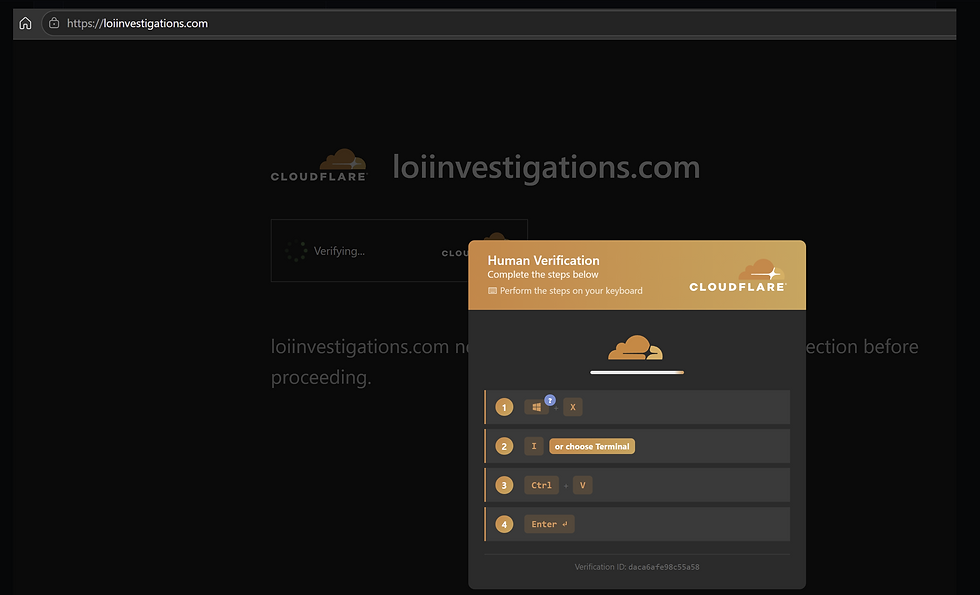
This is the critical pivot point. When the user clicks the link, they are not taken to a phishing site immediately. Instead, they land on a legitimate, authentic Microsoft verification page. The page prompts the user to enter their email address to receive a One-Time Passcode (OTP). Because the URL belongs to a trusted Microsoft domain, the user’s suspicion is lowered.
Step 3: The "Gatekeeper"
The brilliance of this tactic lies in the OTP requirement. The malicious payload is hidden behind this wall.
For Security Scanners: Automated sandboxes and crawlers cannot easily bypass this OTP requirement. They see a legitimate Microsoft page and often mark the URL as "Safe."
For The User: Once they enter their email and the valid OTP, the "gate" opens.
Step 4: The Bait and Switch
After successfully verifying their identity, the user is redirected.
The Target: If the user is the intended victim, they are forwarded to the actual credential harvesting page or malware download site.
The Analyst/Sandbox: If the link is accessed by a security researcher, a sandbox, or from an unexpected location, the attacker's script may trigger an advanced evasion tactic. instead of the malware, the user is redirected to a benign site like Amazon or Wikipedia. This "cloaking" technique makes validation and detection incredibly difficult for SOC teams.
Why This Bypasses Traditional Defenses
This technique exploits the inherent trust organizations place in major platforms.
Trusted Infrastructure: Most organizations cannot block Microsoft domains (like sharepoint.com or onedrive.live.com) without disrupting business operations.
Blind Sandboxing: Traditional email gateways often fail to trace the full redirection chain because the malicious content is gated behind a user-interaction step (the OTP).
Social Engineering: The presence of a "security check" (the OTP prompt) ironically makes the user feel safer, reinforcing the idea that the document is sensitive and legitimate.
Recommendations: How to Defend Your Organization
To counter this threat, organizations must adopt a defense-in-depth strategy that combines technical controls with heightened user awareness.
1. User Awareness & Training
Verify the Source: Train users to scrutinize the sender of the sharing notification, not just the platform. If a vendor sends a file unexpectedly, verify it via a separate channel (phone/SMS).
Check the URL: Even after verification, users must check the URL in the browser bar. If the final destination is not a known Microsoft domain, it is a red flag.
The "Amazon" Red Flag: Remind users that if a business document link redirects them to a shopping site or encyclopedia, they have likely been targeted by a cloaked attack and should report it immediately.
2. Technical Controls
Safe Links & Attachments: Enable "Safe Links" and "Safe Attachments" policies in Microsoft Defender for Office 365 to scan URLs at the time of click.
Advanced Scanning: Implement security tools that support dynamic analysis and can follow redirection chains beyond simple verification steps.
HTML Blocking: If not critical for business, block or quarantine HTML attachments at the gateway, as these are common vectors for initial redirects.
3. Simulation
Test Your People: Conduct phishing simulations that specifically mimic this behavior—using Microsoft-branded lures and verification redirects—to prepare employees for the real thing.
Conclusion
Threat actors are counting on us to trust the logos and links we see every day. By abusing Microsoft’s verification pages, they have found a way to weaponize that trust. However, by understanding the mechanics of this "verification abuse" and training our teams to look beyond the logo, we can close the door on these sophisticated attacks.


Comments